

Install and Configure the Plugin
Install the plugin
Log in to your Dify platform, navigate to Tools → Plugin Marketplace, search for SoMark, and add the plugin.
Configure plugin settings
After installation, open the plugin configuration page:
- API Base URL: Defaults to
https://somark.tech/api/v1. No changes needed in most cases. - API Key: Enter your SoMark API Key.
No API key yet? Go to the SoMark API workbench to get your API key. Free quota does not need to be claimed and is automatically credited to your account (500 pages/day, 2000 pages/month).
Using SoMark in a Workflow
Add the SoMark tool node
In the Dify workflow editor, click + to add a new node, choose Tool, then find and add the SoMark > SoMark Document Parsing node.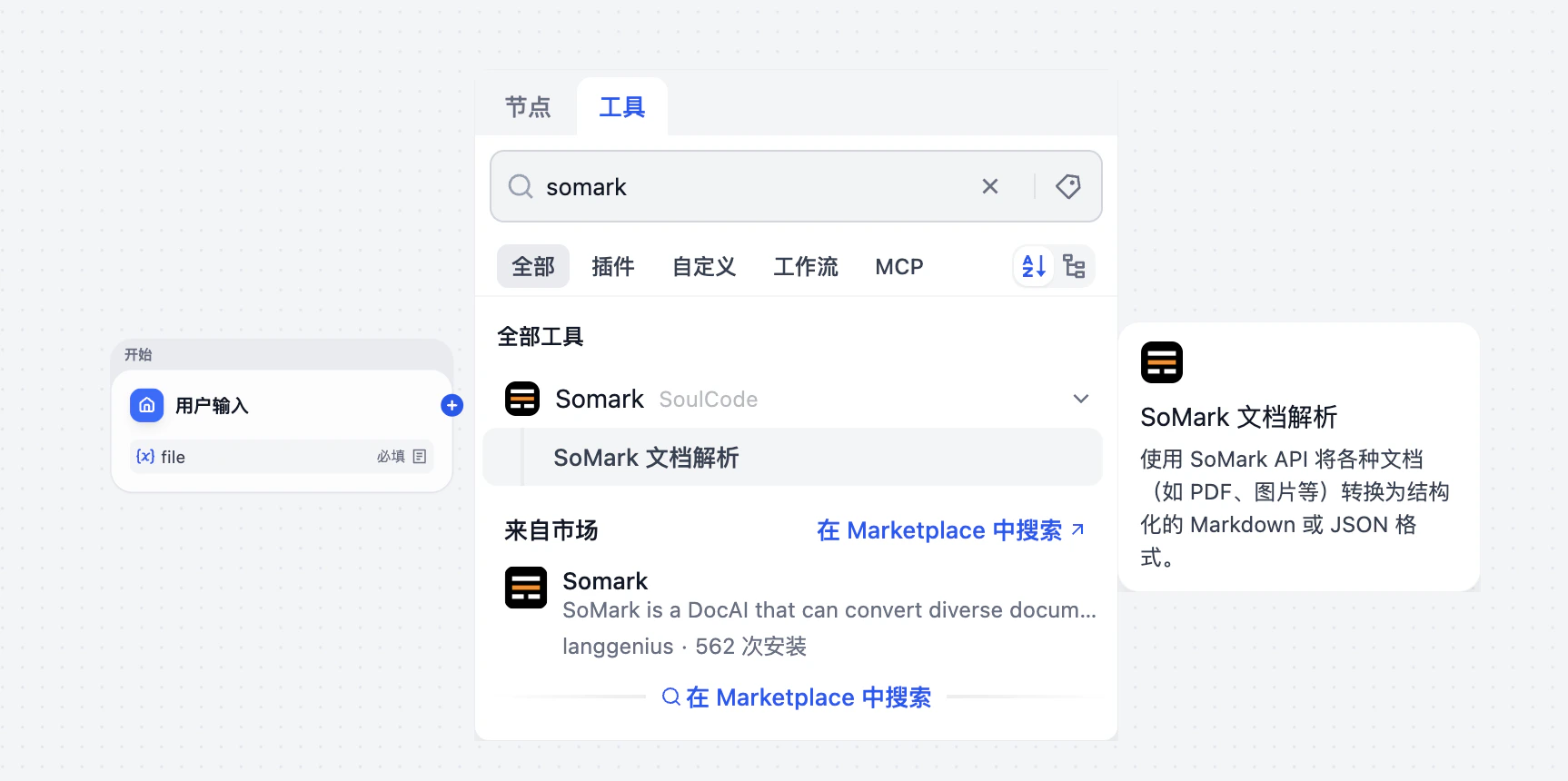
Configure input variables
Click the variable icon 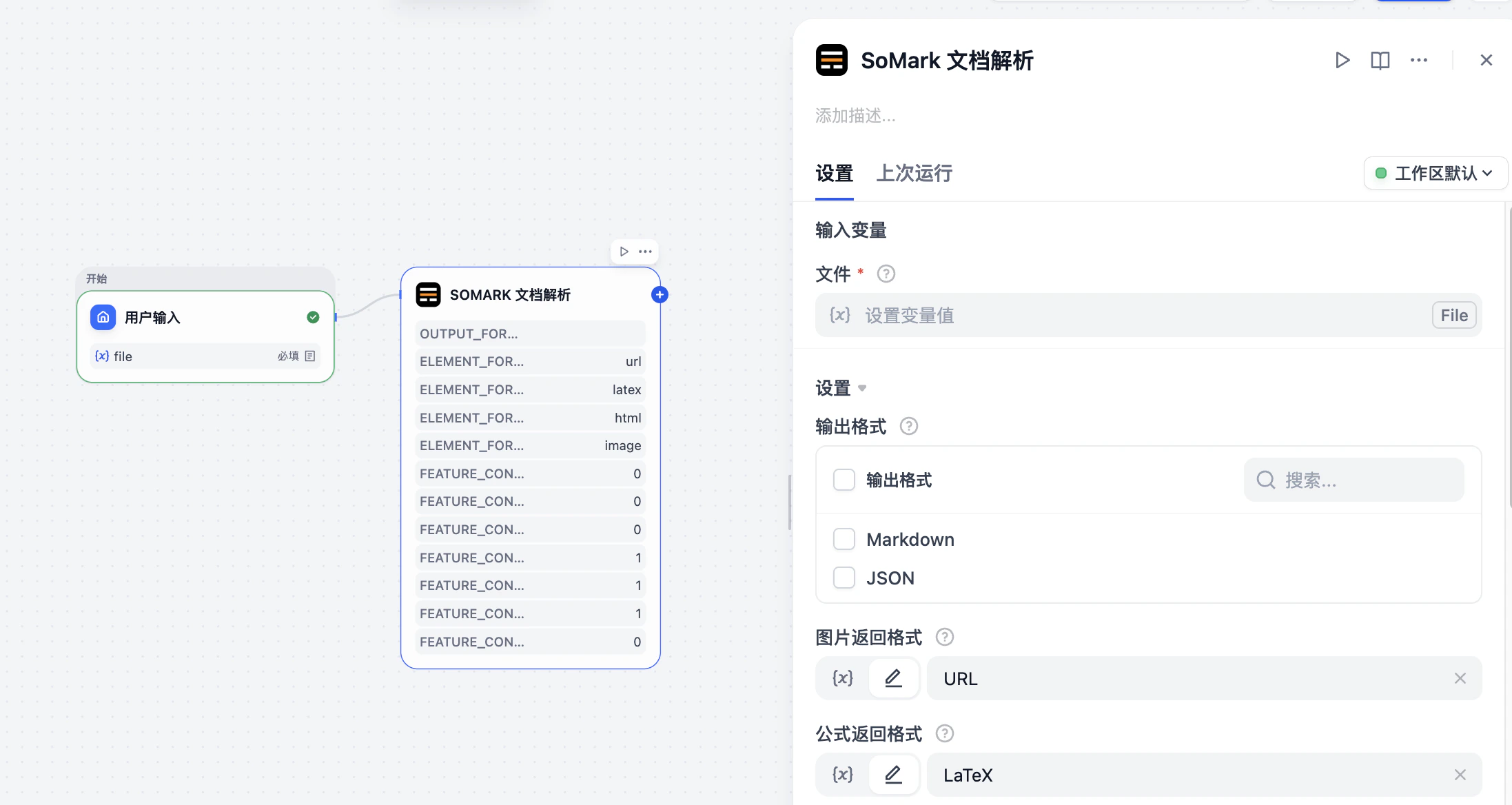
{x} in the input field and select the file variable provided by an upstream node (e.g. sys.files from your Start node).
You can also configure optional parameters (for example Output Formats, Image Format, Table Format) as needed. If you leave Output Formats empty, the node returns both Markdown and JSON by default. See Input Parameters below for details.
The API Key is handled automatically by the plugin configuration — no need to enter it in the node.Parameters and Outputs
Input Parameters
| Parameter | Type | Required | Description |
|---|---|---|---|
File | file | ✅ | Supported files: PDF, PNG, JPG, JPEG, BMP, TIFF, JP2, DIB, PPM, PGM, PBM, GIF, HEIC, HEIF, WEBP, XPM, TGA, DDS, XBM, DOC, DOCX, PPT, PPTX. Max 200 MB / 300 pages. |
Output Formats | checkbox | ❌ | Select one or more output formats. Supported options: Markdown, JSON. If left empty, the default outputs are Markdown and JSON. |
Image Format | select | ❌ | Image output format. Supported options: URL, Base64, None. Default: URL. |
Formula Format | select | ❌ | Formula output format. Supported options: LaTeX, MathML, ASCII. Default: LaTeX. |
Table Format | select | ❌ | Table output format. Supported options: HTML, Markdown, Image. Default: HTML. In Markdown mode, merged cells are expanded into individual cells with duplicated content. |
Chemical Structure Formula Format | select | ❌ | Chemical structure output format. Supported options: Image. Default: Image. |
Enable Text Cross Page | boolean | ❌ | Merge text that spans across pages into a continuous paragraph. Default: False. |
Enable Table Cross Page | boolean | ❌ | Merge tables that span across pages into a continuous table. Default: False. |
Enable Title Level Recognition | boolean | ❌ | Recognize heading hierarchy such as H1/H2/H3. Default: False. |
Enable Inline Image | boolean | ❌ | Return images embedded in text paragraphs. Default: True. |
Enable Table Image | boolean | ❌ | Return images embedded in table cells. Default: True. |
Enable Image Understanding | boolean | ❌ | Perform semantic understanding and structured description for images in the document. Default: True. |
Keep Header Footer | boolean | ❌ | Keep page headers and footers instead of filtering them out. Default: False. |
Output Variables
| Variable | Description |
|---|---|
markdown | Parsed document content in Markdown format, preserving the original layout including headings, tables, lists, equations, and images |
json_str | The complete raw JSON response string returned by the SoMark API, containing detailed structured data for each document element (type, content, bounding box, page number, etc.). Ideal for advanced processing in a code node |